
Stuck in the classroom’s tech room, browser bursting with ten windows. Notes pulled from three sites at once. Then – your instructor announces five minutes left. Fingers panic-clicking those miniature X buttons, often slipping past. Losing chunks of time on a task meant to be instant. Ever been here?
Truth is, most folks overlook what sits right under their thumb. That wheel on your mouse? It scrolls, sure. Yet pushing it down unlocks actions few expect. Clicking it isn’t just mechanical – it triggers shortcuts across browsers. Suddenly, tabs open and close without touching the keyboard. Imagine pausing videos with one firm press instead of hunting for controls. Even switching between pages gains speed. You didn’t think a tiny click could shift your rhythm online. Now it does. Not every student has given it a go. A few haven’t noticed how it locks into place.
Middle-click magic runs fine in Chrome, Firefox, Edge, Brave – pretty much any up-to-date browser you grab. Extensions? Not required here. Fiddling with preferences? Skip it entirely. Knowing the right click at the right moment is really all that matters.
Here’s a look at five – picked since they’re what students rely on heavily, also where the biggest time savings show up.
What Even Is the Middle Mouse Button?
Hold up. We should clarify something before diving into those middle-click shortcuts. See that wheel right in the center of your mouse? It does more than just spin. Push it inward like a button. That move – pressing the wheel – is what counts as a middle-click. Scrolling happens all day long, yet hardly anyone tries clicking it.
Pressing the left and right trackpad buttons together usually gives a middle-click when using a laptop without a separate mouse. With some Windows touchpads, tapping with three fingers does the same thing instead. Find this option by opening Settings, moving to Bluetooth and devices, selecting Touchpad, then checking the section called Three-finger gestures. Sometimes it works right away – other times you need to turn it on first.
On Macs things work differently because the trackpad ignores middle-click by default. Try tapping with three fingers using an app named MiddleClick, it fills that gap quietly. This tool helps when digging through articles or writing papers without fuss. Worth having around if screens full of tabs feel normal.
Right then – once you’ve spotted the button, stuff starts making sense.

Middle-Click Browser Trick 1: Open Any Link in a New Tab Without Right-Clicking
This time around, folks usually find it early – suddenly questioning every past effort wasted on longer methods. Why? It just clicks faster than old habits ever did.
Clicking a link with the left button sends you away, leaving the present page behind. Right-click brings up options, forcing a second move to pick “Open in new tab.” Pressing the scroll wheel on a link launches it instantly in another tab without shifting your view. That spot stays untouched. The next page gathers itself out of sight.
Imagine reading about World War II online. Five links catch your eye – maybe one leads to trench warfare, another to key figures, others to timelines or weapons. Rather than opening them one by one, hitting back each time, losing track halfway – you click each with the scroll wheel. Tabs appear without interrupting your reading. Later, you move between them at your own pace. The flow stays smooth. Nothing gets lost mid-research.
A girl I taught was preparing for a debate by collecting details from various online reports. Because she needed speed, reading each article one at a time slowed her down too much. Opening new tabs manually took ages – she admitted losing nearly half an hour clicking around. Then she tried opening links in background tabs using the mouse wheel. Suddenly, gathering data from eight or even nine sites felt effortless within those same thirty minutes. Not overstating it – one small change made everything faster. Handling windows without shortcuts? Still surprisingly clunky today.
One More Detail Worth Knowing
With Shift held down, click the link using the middle mouse button to land right in the fresh tab – no need to switch manually. Opening tabs this way skips the wait, dropping you directly into the new page. Most times, I prefer letting links open quietly behind the scenes so I can stack them before checking each one. Yet if a quick escape to another page is what you’re after, that Shift trick cuts through the steps cleanly.
Middle-Click Browser Trick 2: Close Tabs Instantly Without Hunting for the X Button
It seems silly, really – such an easy thing, yet hardly anyone gives it a go.
That little X sits on the outer edge of each browser tab. With too many tabs, those close buttons shrink into almost invisible targets. Missing them happens often – your finger aims true but lands elsewhere. A tap meant for exit opens another page by mistake. Frustration builds fast when small things misfire.
Tap the scroll wheel right on the tab’s name area – skip the close button entirely – and the page shuts straight away. Hitting the target every time means no second tries, no annoyance creeping in. Done.
It might seem minor. Yet when someone regularly has dozens of tabs piling up during research, shutting each one quickly by clicking the scroll wheel becomes surprisingly efficient. Slide the pointer across the top edge, tap once per tab, watch ten vanish in less than five seconds.
Here’s something handy. Should a tab vanish by mistake, tap the blank part of the tab strip with the right mouse button, then pick Reopen closed tab. Chrome and Edge offer another way – hit Ctrl plus Shift plus T to restore the last one gone. Your progress stays safe.
This Works in More Places Than You’d Think
Middle-clicking to close isn’t just a browser thing. On Windows 11, File Explorer now has tabs, and middle-clicking a folder tab closes it there too. If you’re someone who works with a lot of folders open, same trick applies.
Middle-Click Browser Trick 3: Middle-Click the Back or Forward Button to Open in a New Tab
This thing? Most folks have never caught on – even those who’ve spent ages online.
That little back button up in the corner of your screen? Click it normally, you go one step backward. Press the scroll wheel on your mouse instead, though – now the earlier page loads in its own separate tab. Your current spot stays untouched.
What’s the big deal here? Suppose you’re staring at a list of links from Google, pick one, start reading, then remember there were others worth peeking at too. A quick middle-click on back sends that search page into a fresh tab – quietly waiting behind yours. There it sits. Your original spot stays untouched while the old view reappears just where you left it.
Pressing forward does just what you’d expect. Tap it with the middle mouse button to load the upcoming page in your browsing trail inside its own tab. What about refresh? Give that one a middle-click too, and suddenly you’ve got an identical copy of today’s tab sitting beside it. That little move slides right into the following shortcut without missing a beat.
Middle-Click Browser Trick 4: Duplicate Your Current Tab by Middle-Clicking Refresh
Actually helpful when you’re a student dealing with lengthy articles or forms.
A tap with the scroll wheel on the round refresh symbol – sometimes an X during loading – won’t simply restart the page. Instead, a fresh tab appears, carrying over everything from your present window, including every stop along the way. Back and forward buttons work fully inside this clone, tracing each prior move exactly. The trip down remains intact, step by step.
Picture yourself halfway through a lengthy web form. A fresh tab appears when you hit refresh with the mouse wheel. Trying another option becomes possible now, thanks to that extra window. The first version stays untouched while changes play out in the second. What if one reply shifts the whole outcome? This way tests happen safely. Original data remains intact, always there to return to.
Maybe you’re halfway down a lengthy piece, needing to check a detail without forgetting your place. Hit middle-click, reload the page, then open another version. Search what you need there instead. Return whenever ready – your first window stays put.
One of my students used this trick during online exam research sessions. He was supposed to compare two different sources on the same event, and he needed to switch back and forth constantly. Rather than keeping two separate searches going, he opened one article, duplicated the tab, found the second article in the duplicate, and toggled between them. Saved him a lot of time and he didn’t lose his place in either one.
Middle-Click Browser Trick 5: Middle-Click Bookmarks to Open Them in a New Tab (Including Entire Bookmark Folders)
This browser feature could easily be the quietest gem among the bunch. Bookmarks do more than most realize – this tip proves it.
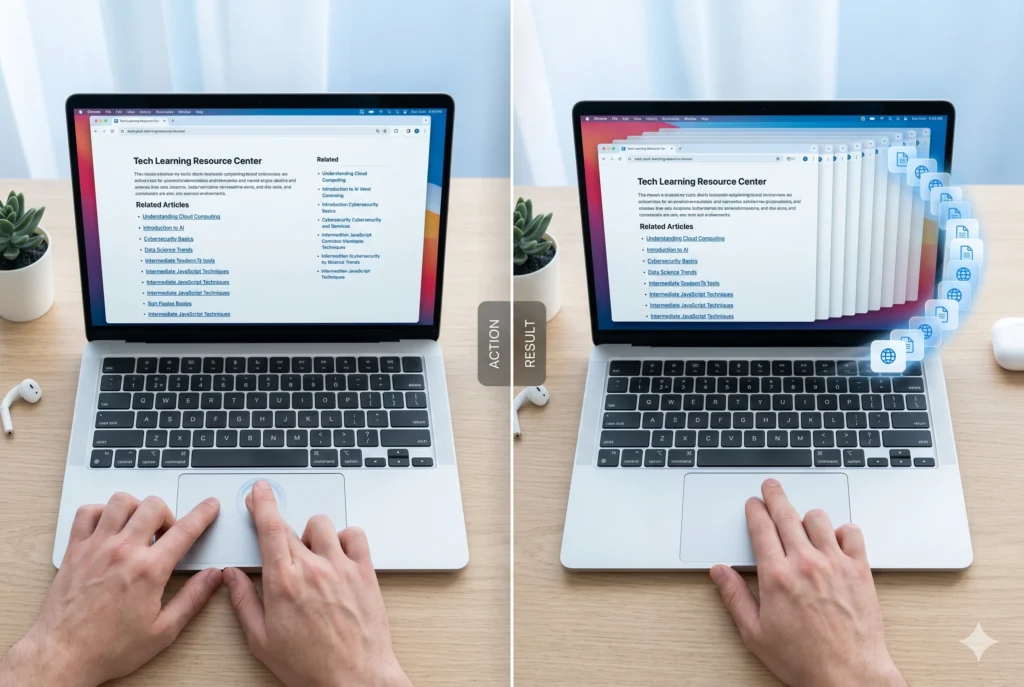
Clicking a bookmark with the scroll wheel opens it behind your current tab, so you keep reading here. The top bar shows your saved links ready for this trick. Instead of switching pages by accident, give that link a quick press in the center. It loads without disturbing your spot online. A small move saves time every single day.
Here’s the smart part. A folder full of bookmarks – click it with the scroll wheel, and suddenly every link inside springs open in separate tabs.
Imagine putting it into real life. A student prepping for a geography test creates a folder labeled “Geography Study Sites,” filled with eight favorite pages. Rather than loading each site separately at every session, they click the folder with the mouse wheel – suddenly, every page pops up together. Just like that, everything is there in less than five seconds, skipping nearly a full minute of repeated taps.
A look of real surprise crossed her face when I demonstrated the method to a student saving roughly twelve research links. After a pause, she gave it a go. Every single tab sprang open together. “Wait,” she said, “is that seriously all?” I told her it was. That’s everything.
A Quick Note on Performance
If your bookmark folder has thirty or forty links, middle-clicking it will open all thirty or forty tabs at once. Depending on your computer and internet connection, that might slow things down briefly. For everyday study folders with eight to twelve sites, it’s perfectly smooth. Just don’t middle-click a folder with fifty tabs if your laptop is already running slow.
Auto-Scroll: The Middle-Click Feature That’s Easy to Forget
Even though this falls outside the usual five tips, it pops up enough in student questions to deserve a brief note.
A small symbol shows when you press the center button on certain areas of a site – this happens mostly in Firefox or earlier Edge builds. Movement controls speed: the farther the pointer drifts from where it began, the quicker the screen shifts. Instead of spinning the wheel, just guide the cursor higher or lower after that click. Auto-scroll kicks in only if the spot clicked holds no links or buttons.
Reading lengthy pages becomes easier when you do not need to keep scrolling yourself. This function does not work straight away in Chrome though turning it on is possible through the flags menu. Look up either “smooth scrolling” or “enable middle click autoscroll” inside Chrome’s testing tools to activate it.
Not the most dazzling move – yet for those grinding through dense textbooks or extended reports, it offers a steady rhythm. Though quiet in appeal, it suits readers needing pace without strain. A method that slips under the radar ends up carrying weight where focus matters.
Middle-Click Tricks on Mac and Laptop Touchpads
When students rely on MacBooks or similar devices, time spent learning gestures pays off. For anyone stuck using only touchpads, small adjustments make navigation smoother. Most never explore shortcuts until frustration kicks in. Yet once muscle memory builds, scrolling and switching apps feels natural. Some skip setup entirely – until they see others glide between screens. A brief pause now saves minutes daily later.
Pressing Command while clicking a link on a Mac gives that middle-button effect in browsers. Opening links in a quiet tab happens just like a physical scroll wheel click would. Not identical to actual middle-click hardware, yet delivers what matters most. The result feels familiar even if the method differs behind the scenes.
A three-finger tap can act like a middle click if you install MiddleClick, a free tool found online. With that running, everything listed earlier functions just as described. The setup changes nothing about how those actions behave.
Fingers down, most Windows laptops recognize three taps if turned on. Head into Settings first, then move through Bluetooth and devices toward Touchpad options. Look for Three-finger gestures somewhere inside. Switch Taps there to act as the Middle mouse button. Suddenly, hitting the pad with three fingers does what a scroll wheel click normally does. Works just the same.
A Quick Summary of All Five Middle-Click Browser Tricks
Let’s pull these together quickly so you can refer back to them:
Trick 1: Middle-click any link to open it in a new background tab without leaving your current page.
Trick 2: Middle-click a tab anywhere on its title to close it instantly, no need to aim for the tiny X.
Trick 3: Middle-click the back or forward button to open your previous or next history page in a brand new tab.
Trick 4: Middle-click the refresh button to duplicate your current tab with full browsing history copied over.
Trick 5: Middle-click a bookmark to open it in a new tab, or middle-click a bookmark folder to open all its contents as separate tabs simultaneously.
Why These Middle-Click Browser Tricks Actually Matter for Students
Let me be real with you for a second. None of these tricks are life-changing on their own. Knowing how to middle-click a tab to close it won’t get you better grades. But here’s what does matter: research sessions, especially the kind where you’re pulling from five or six sources in a short amount of time, eat up a lot of minutes in useless back-and-forth navigation.
When I was helping students prepare for research-heavy assignments, the ones who struggled most with time weren’t struggling because they were slow readers. They were slow because their workflow was inefficient. Opening, closing, going back, losing their place, re-finding the same article they’d already seen. These are all fixable problems.
Middle clicks make things smoother. They do not solve everything instantly, yet they shave seconds off tiny tasks during long reading stretches. A single press opens references immediately rather than needing extra steps. Tabs vanish cleanly through a tap below the cursor, skipping fussy targeting. Pages repeat themselves effortlessly – no backtracking required.
Open a link with a single middle-click today. Pick only that one move at first. Maybe go with the tab trick – it helps right away when surfing pages. Repeat it several times. Soon your fingers will do it without thinking. Once you notice how handy the center button can be, the rest follow quietly on their own.
Funny how that little wheel under your finger actually does more than you thought. Since it’s there, maybe give it a real job now.

Conclusion
We covered five middle-click browser tricks in this article, opening links in background tabs, closing tabs without hunting the X button, using the back and forward buttons to open pages in new tabs, duplicating your current tab through the refresh button, and opening bookmark folders all at once.
No need to install anything or tweak preferences. Right inside your browser – works fine in Chrome, say, or Firefox, even Edge and Brave – it just runs. On a laptop, try tapping with three fingers, or hold Command while clicking if you’re using a Mac; both get close to the same effect.
What matters most is not some secret hack. Instead, think about everyday gadgets – like your mouse or browser. Those little parts you ignore, such as buttons you breeze by, tend to hold hidden uses. For ages, the center button stayed idle beneath your finger, even as you tapped the small X again and again each afternoon.
Start with opening links in new tabs. Get comfortable with that. Then close tabs by middle-clicking them. Once those two feel natural, the rest are easy to pick up.
Come back and try these next time you’re doing research for school. That alone will make your next assignment feel a bit less chaotic.