

Imagine someone hands you a puzzle with missing pieces. They say they need help making something smart, yet never touched coding before. Most would assume it means endless nights studying textbooks. Yet lately, the old rules seem less fixed. Type words into a blank page online. Click once. A machine begins thinking right there on screen. No downloads needed. The process simply unfolds. Like magic, only real.
Here’s where many learners land these days, particularly once Google AI Studio comes up. Perhaps a YouTube clip brought it up, or your instructor slipped it into lecture – suddenly you’re wondering, what exactly is this thing? Fair enough. The title rings like code talk. Feels built for coders in glass offices, doesn’t it? Not someone on a bunk bed typing away with just Wi-Fi and will.
Here’s something worth knowing upfront. Google AI Studio happens to be among the easiest AI tools for newcomers today, yet costs nothing to begin using. What follows explains clearly what this tool does, how it functions, possible uses, plus real ways to step into it without confusion. A high schooler wondering about artificial intelligence might find this useful, just like a university learner wanting hands-on starting points for creating with AI. You’ve landed where that fits.
What is Google AI Studio, Really?
Picture this. Running straight from your web browser, Google AI Studio gives access to tools built by Google – focused mostly on their Gemini models – for testing, trying ideas, or making new things. It asks nothing upfront. No installation needed. Setting up special software? Skip it. Just open the site, log in using your regular Google details, then start exploring right away.
Back in December 2023, Google introduced a new tool. Earlier than that came MakerSuite – Google’s first take on the concept. But AI Studio replaced it and became much more powerful. Think of it as Google giving the general public direct access to the same AI technology that powers some of its most advanced products.
Now, here’s a question many students ask me: is this the same as just chatting with Gemini on Google’s main website?
Actually no. Regular chats with Gemini feel complete right away. That version comes preloaded by Google – rules included, personality locked in, behavior fixed. But inside Google AI Studio things shift. Here you touch the raw model directly. Shaping its responses becomes your move. Start by picturing it as firm, then shift to warm – your call shapes its stance. Whether responses spark wildly or stay tight, that rhythm? Yours to set. Length bends to your preference. Even the quiet guidelines behind each reply come from choices you make. Shape it like clay, moment by moment.
One kid put it plainly. Arjun, studying in Pune, said he wasted days wrestling free versions of chatGPT into making a quiz bot. Then came across Google AI Studio – saw results within hours. His coding skills weren’t sharp. Just happened to find what actually worked.

What Can You Actually Do Inside Google AI Studio?
This is where it gets interesting. A lot of beginners land on the platform, look at the interface, and feel overwhelmed because there are more options than they expected. So let me walk you through the main things you can do there.
Chat and Prompt Testing
The most basic thing you can do is type a prompt and see how the AI responds. This sounds simple but it’s actually very useful if you’re learning how AI models work. You can test the same question ten different ways and see how the output changes. You can learn which types of prompts get better results.
Say you’re writing a research paper and you want to use AI to help you summarize a complicated topic. You’d paste the content in, write a good instruction, and see what you get. Then you’d tweak the instruction and try again. That process of testing and refining prompts is called “prompt engineering,” and it’s a real skill that companies now hire for. Google AI Studio is the best free place to practice it.
System Instructions
Right off the bat, many new users overlook this – yet it holds real strength. Think of system instructions as preset guidelines handed to the AI ahead of any chat. Rather than repeating context each time, drop those details just once into the instruction box so they stay active throughout your entire interaction.
Imagine making a study aid. The guide inside could read: “Act like a calm tutor in biology. Use everyday situations to explain ideas. Do not hand out answers fast. Get the learner to pause and reflect before responding.” Each time anyone opens the tool later, it just works that way – no extra steps needed.
A student I know used this to build a personal writing coach. She typed her system instructions telling the AI to be strict about grammar and always explain the reason behind each correction. She ran it for an entire semester and said it helped her more than any grammar app she’d paid for.
Adjusting Temperature
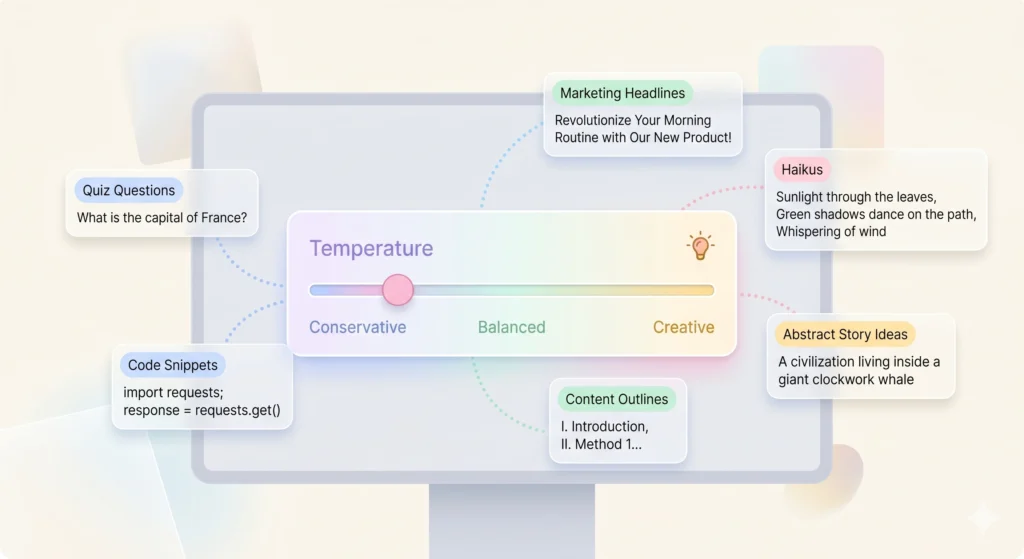
Every time you see the word “temperature” in the context of AI, I want you to think of it like a dial between “safe and boring” on one end and “wild and creative” on the other. That’s genuinely what it controls.
When temperature is set low, near zero, the AI picks the most predictable, factually grounded words. It’s safer for things like writing code, getting medical information, or summarizing a document where accuracy matters more than style. When temperature is high, closer to one or above, the AI takes more risks with word choice. It gets more interesting, more unexpected, and yes, sometimes slightly weird.
If you’re working on a creative writing project and the AI keeps giving you bland descriptions, try bumping the temperature up. If you’re trying to get it to write consistent factual content and it keeps going off-script, pull the temperature down. Once you understand this, you’ll stop blaming the AI for giving strange answers and start adjusting settings instead.
Multimodal Inputs
A thing that seems complex at first turns out pretty simple. When they say multimodal, they’re only saying the system handles different kinds of info. Try typing something while adding a picture – you can do that here. Even throw in sound, if you want. Certain setups let you include moving pictures too. All of it gets processed together without extra steps.
Picture being a student putting together a talk on buildings. Drop a photo of a structure into the system, then have it explain the design approach, guess the time period, also toss in three odd details about that look – all at once. Once upon a time, that meant tracking down experts. These days? Done before your coffee cools.
The Three Main Modes You’ll Use
Google AI Studio organizes the workspace into different modes. Here’s a plain breakdown of the three you’ll interact with most.
Chat Mode
This is your starting point. You type, the AI responds. It supports multi-turn conversations, meaning the AI remembers what was said earlier in the same session. This is where most beginners spend most of their time, and honestly, for learning how AI works, this is where you want to be too.
Build Mode
Once you get comfortable with Chat mode, Build mode is where things actually start feeling like development. It lets you turn a working prompt setup into something that functions more like an app. You’re not writing full code here. You’re shaping flows, connecting inputs to outputs, and seeing how the AI behaves as a product feature rather than just a chatbot.
This mode has become much more capable recently. Google added something called the Antigravity coding agent, which can turn a natural language description of what you want to build into a working prototype. You describe your idea in plain English. The agent figures out the technical setup. A few months ago, someone in my college WhatsApp group built a recipe generator app in Build mode on his first try. He’d never built a web app before. He was annoyed it worked that easily because he’d been planning to spend a week learning React first.
Stream Mode
Not quite like the rest. With stream mode, talking happens live – voice carried straight to the AI while the camera stays on. Speaking replaces typing entirely. The view from your webcam shares what’s around you or even your display. Responses come back spoken, not written.
Practical stuff hides here for learners. Try talking through thoughts with the machine, hearing replies as you go. Hand over scribbled pages, then listen while it reads your words aloud. Daily use? That swings on your current projects. Still – good to know it’s sitting there.
What is Google AI Studio’s Approach to Free vs. Paid?
A lot of students want to know: what’s the catch with the free version?
There are two tiers. The free tier gives you immediate access to most features without a credit card. You’re working within certain rate limits, meaning there’s a cap on how many requests you can make per minute or per day depending on which model you’re using. For learning and prototyping, those limits are generally fine. You won’t hit them unless you’re running hundreds of automated tests.
The one thing to know about the free tier is that Google may use your prompts and responses to improve its products. Human reviewers can potentially read them. So don’t put anything sensitive in there. No passwords, no personal details, no confidential school or work information. That’s a real consideration, not a technicality buried in terms and conditions.
If you connect a Google Cloud billing account, you move into the paid tier. Your data is kept private and isn’t used for training. For most students who are just experimenting, the free tier is more than enough to get started.
How to Get Started With Google AI Studio: A Practical Walkthrough
Time to move on from theory. Here is how it works, one piece at a time.
Step 1: Visit aistudio.google.com
Start by opening it in your web browser. A simple welcome screen shows up right away. To get in, choose the login button then enter the Google details you already have. The very same email address you use every day. There is no need to make another profile.
Step 2: Look at the main dashboard
First thing you notice after logging in? A menu down the left side. It holds choices – Home sits there, along with Playground, which is where chat happens. There’s also Build, Dashboard, and Documentation nearby. You do not have to click through every item right away. Head straight to Playground instead.
Step 3: Write Your First Prompt
Start by typing your thought into the middle box. Maybe ask for an idea, a fact, a story – anything clear. Try “Tell me how plants eat sunlight, but make it easy” or “Make up a quick rhyme about test day stress.” Press the Run button. Or just tap Ctrl+Enter on your keyboard. Watch what shows up below after that.
Step 4: Play with the settings panel
Over there on the right, settings wait quietly. Pick your Gemini model here instead of skipping ahead. Try a different temperature – slide it one way or another. System instructions? Add them if you feel like it. Tools such as Google Search grounding or code running can switch between active and silent modes. Skip sticking to defaults every time. Change that slider. Watch how things shift when you do.
Step 5: Try adding a system instruction
Start by tapping where the system settings appear. Put in words such as “You are a strict but kind physics teacher. Always use everyday analogies before technical explanations.” Have a conversation now – notice how answers shift slightly from earlier replies when you ask questions.
Once you’re set to start building, grab the API key. It waits until you need it. Not before. When coding begins, that key becomes active. Ready does not mean rushed. The moment arrives only when you do. Building starts with this step. No earlier
Down near the base of the left panel sits a choice labeled “Get API key.” When building something – maybe a site or tool – you might need this to link up with Google’s artificial intelligence. Creating one costs nothing at all. Hold onto it like a secret. Sharing it openly, say on GitHub, could cause trouble later. Usage numbers appear right there on screen, letting you see request counts over time.
What Can Students Actually Build With This?
Here’s where I want to give you some grounded, realistic ideas rather than vague promises.
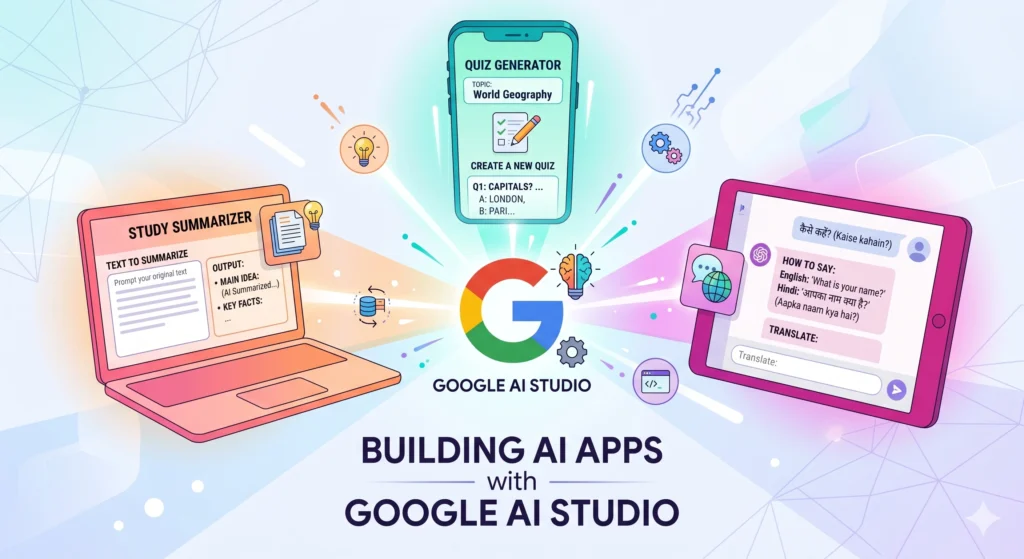
A personalized study summarizer. You paste long lecture notes or a research paper. The AI pulls out the key points in whatever format works best for you. Add system instructions so it always returns bullet points and key terms in bold. This alone saves time before exams.
A quiz generator. Give the AI a chapter from your textbook. Tell it to generate ten multiple choice questions with four options each and mark the correct answer. It’ll do it in seconds. Run it on a different temperature to get questions that range from straightforward to trickier.
A personal writing editor. Set up system instructions telling the AI to act as a strict editor who only points out grammatical errors and clarity issues without rewriting the content entirely. Paste your draft essays in. You get structured feedback without the AI just rewriting everything for you.
A language learning conversation partner. Write system instructions telling the AI to only respond in Hindi, or Spanish, or whatever language you’re learning, and to gently correct you each time you make a grammatical mistake. Then just have a conversation. This is one of the most practical uses I’ve seen students come up with.
None of these require you to know how to code. That’s the point. The Beginner’s Guide to Building with AI starts right here, with just a text box and a set of instructions.
What is Google AI Studio and How Does It Compare to Other AI Tools?
Now here’s a question that pops up a lot – should someone go with Google AI Studio, ChatGPT, or maybe try another option instead?
What matters most is your goal. When it comes to smooth chat, ChatGPT feels refined. For digging into lengthy texts, Claude handles the load well. Google AI Studio isn’t quite a tool you just use – it’s somewhere you build. Shaping AI responses fits those who like tweaking behind the scenes.
A fresh look at Google AI Studio reveals its free level opens doors to strong tools usually behind paywalls elsewhere. Take Gemini Flash – speed stands out, juggling many jobs without slowing down, sitting right there in the no-cost plan. Some versions let you toss in huge chunks of words at one go, thanks to massive space for incoming text. Need to run analysis on full books? Go ahead, the room exists.
Getting started takes longer than typing into Gemini at Google’s site. More options show up, needing attention. The look feels a bit rough around the edges. Yet for those looking to create, the added depth makes sense right away.
Common Mistakes Beginners Make
Frustration hits some learners using Google AI Studio – yet every cause could have been sidestepped easily.
Most times people struggle because they give fuzzy directions, yet still fault the machine when replies disappoint. Try asking for anything on global warming – it returns flat stuff nobody needs. But picture requesting a clear breakdown of ocean acidity harming coral, aimed at teens, including a striking comparison – suddenly it clicks. Detail pulls quality forward. Precision shapes outcome.
Another one is never touching the system instructions. Most beginners just type in the chat box and never use system instructions at all. That’s like buying a laptop and only using Notepad. System instructions completely change how the AI behaves and make the whole experience more useful.
Some students also forget that the AI doesn’t remember anything between separate sessions. Each new conversation starts completely fresh. If you built a great setup last week with specific system instructions and context, you’ll need to recreate it or save the prompt before closing.

Conclusion
We’re at a point where knowing how to work with AI models isn’t a niche developer skill anymore. It’s becoming something that’s useful in almost every field. Teachers, doctors, lawyers, architects, writers, marketers, people in all of these areas are figuring out how to use AI tools to do their work better. Starting now, even as a student, puts you ahead.
What is Google AI Studio in one sentence? It’s a free, browser-based workspace where you can test, customize, and eventually build with Google’s most capable AI models, without needing to set up anything complicated.
The Beginner’s Guide to Building with AI doesn’t have to start with a course, a certificate, or a textbook. It can start with you opening aistudio.google.com, signing in, and typing your first prompt. That first prompt won’t be perfect. Your second one won’t be either. But by the tenth or fifteenth, you’ll start to understand how these models think, what they respond well to, and how to shape them to actually help you.
If you’re a student reading this, the practical next step is simple. Go to aistudio.google.com today. Spend thirty minutes in Chat mode. Try the temperature slider. Write a system instruction. See what changes. That hands-on time is worth more than reading another ten articles about what AI can theoretically do. Get in there and find out for yourself.