
Hey mate. If you are a school or college student and your iPhone just looks like a wild jungle of apps, notifications, and screenshots to you, guess what, you are not alone. For more than twelve years I have been helping students just like you with work simple tech tips that turn tech into a friend, not an enemy. And today I am really happy to present ten new beautiful iPhone home screen ideas that can help you set your digital life straight without any fuss.
These suggestions are ideal if you wish your phone to not only look good, but also to be a means of calmness and a tool that can really help with your studies. We will discuss the matter of employing AI tools such as Grok directly on your display, thus obtaining quick answers for your homework or essay ideas within a few seconds.
I took a look at what students in 2026 are doing on Pinterest and YouTube for inspiration, however, I have created everything fresh and very simple to follow in my own words. No complicated jargon, just me talking with you as if we were sitting downstairs after the lesson.
Here’s why it is important. If your phone’s home screen is cluttered, you end up spending a couple of minutes a day just looking for the Notes app or your timetable. Several students reveal to me that they mistakenly open Instagram and waste an hour. A neat, aesthetically pleasing arrangement does away with this.
It reboots your mood, lessens stress before exams, and even saves your battery as dark or light themes are easier on both your eyes and phone. Additionally, the moment you bring in AI assistants such as Grok or ChatGPT widgets, your phone turns into a clever study partner that is always ready to help you, not distract you.
Imagine waking up, unlocking your phone, and seeing a serene wallpaper with your class schedule widget and a large Grok button ready to summarize your history chapter. Nice, right? That is the kind of thing these ideas can accomplish.
I will outline each of them for you with straightforward steps, genuine student examples from my courses, additional pointers for frequent issues, and a small narrative to help you visualize it in your own life. Ends up your will be all set to choose one and give it a go by the weekend.
Let us start with the basics before we jump into the ten ideas.
Why students love pretty and organized home screens
Think about your school bag. If everything is thrown in randomly, you spend ages finding your pen during a test. Same with your phone. A good aesthetic iPhone home screen idea groups things logically so study apps are together, fun apps are hidden, and important info pops up automatically.
From what I see in 2026, students who tidy their phones report feeling less overwhelmed. One simple change – like hiding app names – can cut down mindless scrolling because the screen looks less exciting to tap randomly. And when you link it to Focus modes, your phone automatically shows only study stuff during class time. It is like having a personal assistant who knows your timetable.
Many students ask me, “But I have so many apps for different subjects – how do I fit them all?” The answer is folders and pages tied to Focus modes. We will cover that in every idea. The best part? These setups work on the latest iOS 26 with its cool Liquid Glass effect that makes icons look like they float gently over your wallpaper. No need to buy anything extra. Just your phone and ten minutes of your time.
Getting ready for any aesthetic iPhone home screen idea
Before we start, here is a universal checklist that is good for any device. In the first place, select the wallpaper that really pleases you, it can be a beautiful nature scenery or the quote of your favorite song in gentle colors.
Does it make you happy? Hence, go for Settings and press Wallpaper to find one that has enough contrast so the icons are easily visible.
After this, long tap the bare spot of your home screen until the icons start wiggling. Press the plus icon at the top to get widgets. As to personal icons, launch the free Shortcuts app, create a new shortcut that opens an app, take a pretty picture from the net as the icon, and put the shortcut on your screen. Next, get rid of the old dull icon by pressing the minus sign. Very straightforward.
Lastly, Focus modes can be configured in Settings so that your phone at different times will display different pages, one for school, another for leisure.
This is the magic ingredient that helps a beautiful screen become a smart organizer. Now we are going to check the ten ideas.
Idea 1: The super clean monochrome look
Imagine your display is in subtle black, white, and grey hues. Only four or five essential apps are quietly sitting without names under them. The rest are concealed in the App Library. This is my preferred choice for pupils who want absolute zero distractions when they get their phones out just to check the time or notes.
Why it is such a good fit for school life: Without the presence of bright colors or extra icons, your mind can concentrate on what you are doing as if you were reading a textbook chapter rather than watching TikTok videos. In 2026, iOS 26 gives you the ability to make icons transparent so that the wallpaper can be seen through them as if they were glass it looks stylish and contemporary.
Let’s pretend I am helping you to do this step, by, step and at the same time. Get into the Settings and pick just a simple grey or black wallpaper. Press your home screen “long”, tap Customize, pick Large icons to hide the names, and choose the Clear or Dark tint.
Move only your principal apps, Phone, Messages, Notes, Calendar, and AI, to the first page.
For the rest, press “long” and select Remove from Home Screen. They still exist in the App Library, waiting for you to use them.
Add a simple clock widget and a AI widget right in the middle. Now when you wake up, ai is there to answer “Explain photosynthesis in simple words for my biology test.”
One of my students, Rahul from class 11, tried this before his final exams. He said, “Teacher, my screen used to make me anxious with all the red notification dots. Now it feels peaceful and I finish homework faster.” He even saved battery because dark colors use less power on OLED screens.
Common doubt: “What if I forget where an app is?” Just swipe down for Spotlight search or ask Siri. Extra tip: Create a Focus called Study Time that shows only this clean page. You will feel like a pro organizer in no time.
Idea 2: Soft pastel colors for a happy study vibe
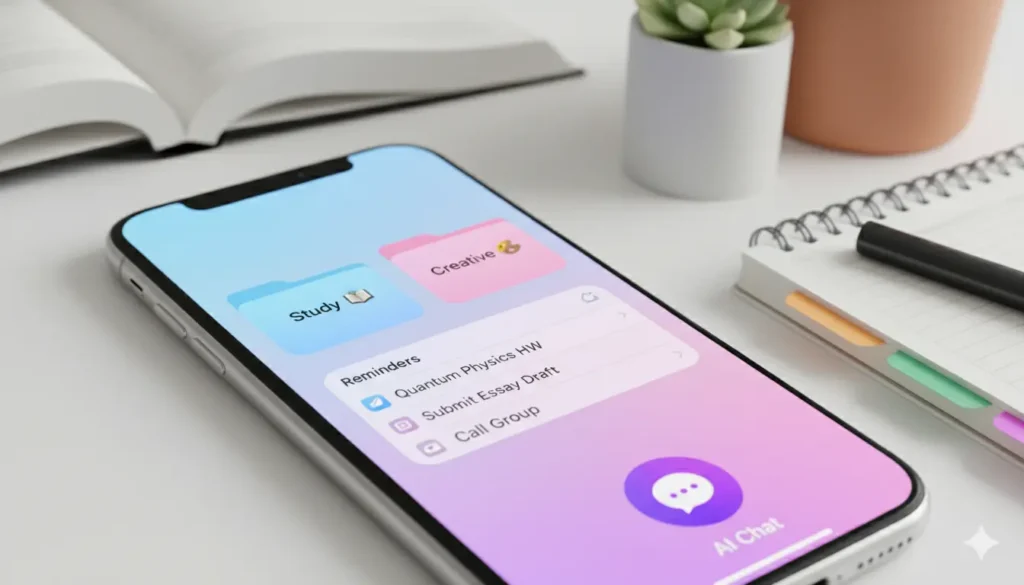
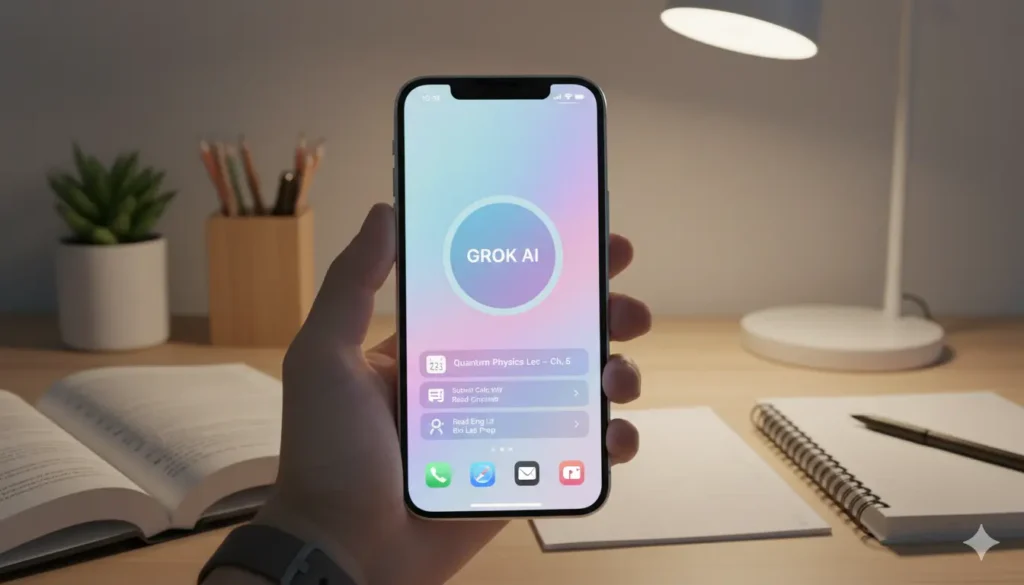
If you love gentle pinks, blues, and mint greens, this aesthetic iPhone home screen idea is for you. Apps get grouped by color so productivity tools are in blue zones and fun stuff in pink. It feels like opening a cute notebook every time.
Students often tell me pastels make them smile and feel less stressed during long study sessions. The soft colors are easy on the eyes, especially when you revise at night.
Step-by-step: Find a pastel gradient wallpaper on Pinterest. Use Shortcuts to create matching colored icons for your apps. Group them into folders with emoji names like 📚 Study and 🎨 Creative. Place four medium widgets – one for weather, one for your timetable, one for reminders, and a big AI chat widget in purple because AI feels smart and calm.
Real example: Priya, a college first-year, used this for her art portfolio semester. She said the pretty colors inspired her and the organized folders meant she never lost her reference photos again. Her friends asked for the same setup after seeing her phone.
Tip for you: If you worry about too many folders, start with just three pages – one for daily use, one for subjects, one for relaxation. This organizes your digital life without feeling strict.
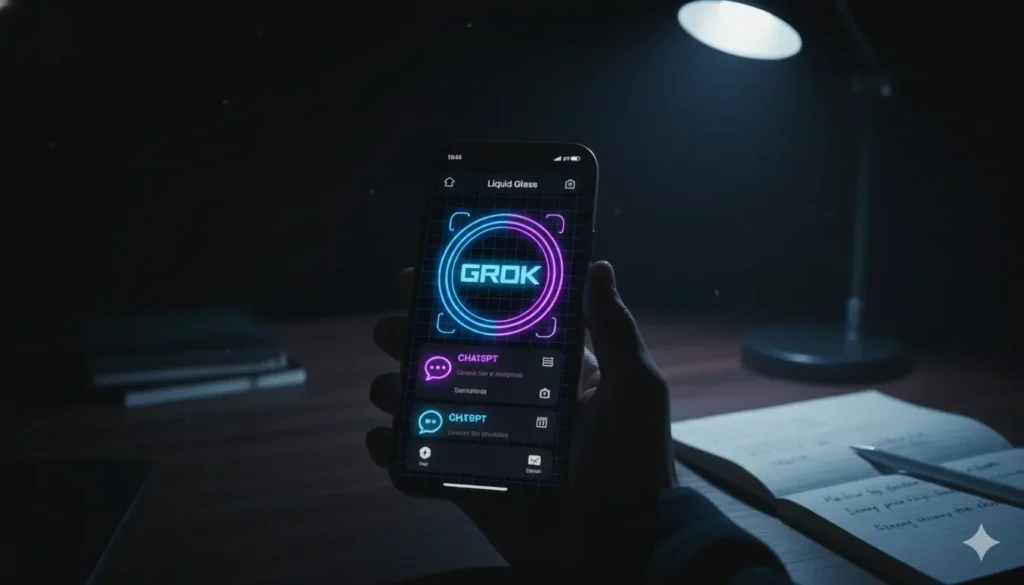
Idea 3: Dark cyber style for night owls
Love gaming or late-night study? Go for deep black background with glowing neon accents in blue and purple. Icons look futuristic with the new Liquid Glass effect in iOS 26.
This setup saves battery and protects your eyes when you study after dinner. Many students use it to feel like they are in a cool sci-fi movie while finishing assignments.
How to make it: Choose a dark city or grid wallpaper. Customize icons to neon tint. Put AI apps like Grok, ChatGPT, and Perplexity on the top row with bright custom icons. Add a smart stack widget that rotates between calendar and quick AI summary cards.
Story time: My student Arjun prepared for competitive exams at night with this. He told me the dark theme helped him stay awake without headaches, and the neon Grok button made asking for practice questions fun. His scores improved because he actually enjoyed opening his phone for revision.
Idea 4: Widget heaven for quick info
Fill your screen with useful widgets instead of tons of icons. Large photo stack of your family, medium calendar, small battery and weather – everything you need at a glance.
This is perfect for busy students who hate opening apps just to check the next class or weather for sports day.
Setup is simple: Long-press, add widgets of different sizes, and stack similar ones so they rotate automatically. Place a big Grok widget at the top for instant homework help. Hide most app icons behind folders at the bottom.
Benefit: You get information without tapping around. One student I know reduced her daily screen time by twenty minutes just because she saw her to-do list right away and did not get lost in apps.
Idea 5: Color zones that match your brain
Divide the screen into left side for school work in blue tones, right side for health apps in green, and bottom for quick tools in yellow. Your eyes learn the map fast.
Visual thinkers love this because it feels like color-coding your notes.
Create zones by placing apps carefully using iOS 26 free placement. Tint each area lightly with custom icons. Put AI in the purple study zone.
Idea 6: Almost invisible clean screen
Hide all names and most icons so only a few float over a beautiful wallpaper. It looks super luxurious and peaceful.
Use the Large icon mode and transparent custom icons made in Shortcuts. Keep AI as the only big button. Everything else stays in App Library.
Perfect for students who want their wallpaper to shine and feel mindful when using the phone.
Idea 7: One single powerful page
Fit everything important on page one – no swiping. AI widget at top, four key AI and study apps below, folders at bottom.
Zero friction means faster action when you need to revise quickly between classes.
Idea 8: Changing themes with seasons
Update your wallpaper and widgets every month using Shortcuts triggered by date. Winter gets cozy dark, exam season gets bright motivational quotes.
Keeps things fresh so you never get bored of your phone. AI can even suggest seasonal study tips through a widget.
Idea 9: Photo memories with study tools around
Use your favorite family or trip photos as big widgets. Arrange study apps around them like a frame.
This adds emotional warmth so studying feels connected to real life, not just boring work. Apple Intelligence photo tools plus AI for creative captions make it even better.
Idea 10: Fun retro pixel style
Mix old-school 8-bit icons with modern crisp widgets. Great for students who like games but still need serious AI help.
Comparison table of the 10 ideas
| Idea | Style | Best for students who… | Setup time | AI help level | How much it organizes |
| 1 | Monochrome | Want calm focus | 5 minutes | High | Very high |
| 2 | Pastel | Love pretty colors | 10 minutes | Medium | High |
| 3 | Dark neon | Study at night | 8 minutes | Very high | High |
| 4 | Widget heavy | Need info fast | 12 minutes | High | Highest |
| 5 | Color zones | Think visually | 15 minutes | High | High |
| 6 | Invisible | Want minimal | 7 minutes | Medium | Medium |
| 7 | One page | Hate swiping | 6 minutes | Very high | High |
| 8 | Seasonal | Like change | 20 minutes | Medium | Medium |
| 9 | Photo based | Value memories | 10 minutes | Medium | Medium |
| 10 | Retro pixel | Enjoy fun looks | 15 minutes | High | High |
Advanced student tips to make any setup even better
Link your Focus modes to specific pages so school time shows only study apps and Grok. Create a Shortcut that says “Hey Siri, ask Grok for math help” and add it as an icon. Use iOS 26 tinted widgets to match colors perfectly. Every month, check which apps you never open and move them away.
Dark or clear styles save power on long college days. If you have an older iPhone, these still work great with small adjustments.
Wrapping it all up with a big smile
Gosh, we went through heaps of ideas together, didnt we? From the radically neat black and white scheme that is like a cool breath to the cheerful pastel paradise that makes studying a game, these ten aesthetic iPhone home screen ideas really can change your everyday phone usage totally.
Always keep in mind the real goal is not perfection it is simply being organized, calm, and thrilled to open your device because it is helping you and not stressing you out. Start with the smallest step. Choose only one idea that fits your character. Take a ‘before’ photo, get it done in ten minutes, and after a week see if you get it. Most likely, you will realize that you are less wasting time, finding things quicker, and even enjoying AI tools more since they are right there waiting to help you with your essays, quizzes, or planning your day.
Few of the students that I had who used these straightforward tweaks to the lives have told me their grades have gone up a bit, not because the phone did the work but because they felt more in control and less distracted. There was a girl who even said that her parents had noticed that she was happier and less stuck on random scrolling. Thats the real magic.
You have everything you need now – easy steps, real examples, and friendly encouragement. Go try one today after finishing your homework. Your future self, the one who finishes assignments early and still has time for friends, will thank you. If you ever get stuck or want to share your new setup, just imagine me cheering you on from here. You have got this, friend. Your digital life is about to feel way lighter and prettier. Keep shining and studying smart.