

Imagine you are a teacher explaining a complex math concept to students, gamer flaunting a clutch win of your well-liked game or a freelancer who is explaining a software demo to a client. By 2026, screen recording is no longer a dorky novelty, it is a reference of the industry, teachers, professionals, and ordinary individuals.
A major screen recorder will help you to transform your ideas into professional level videos at no cost to you.
That’s where Scre.io comes in, a free, no-fuss tool that’s winning hearts on Windows 10, Windows 11, Mac, and even as a Chrome extension. Available at scre.io, it’s a standout in a crowded field of tools like Bandicam, OBS Studio, Loom, ScreenCastify, and iTop Screen Recorder.
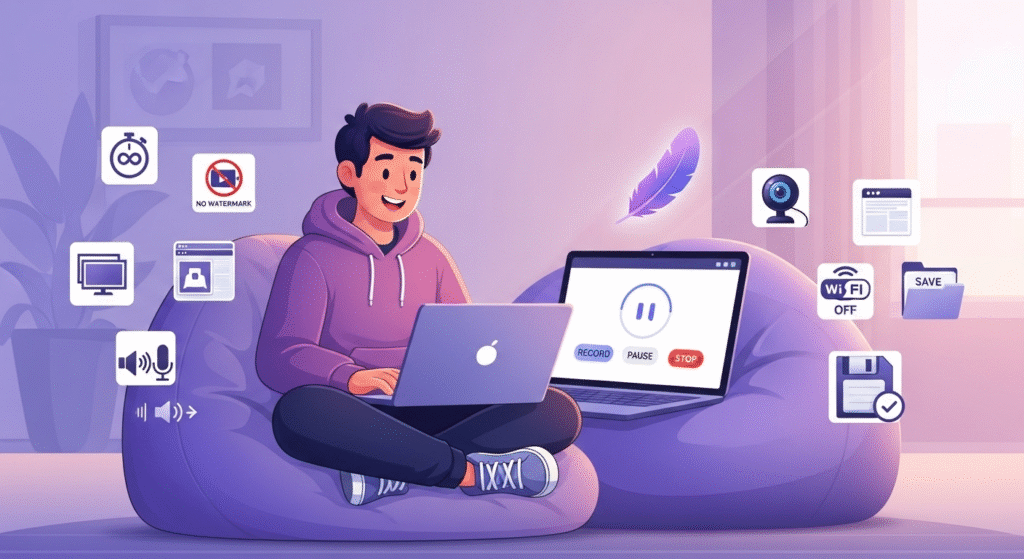
Why Scre.io is the Best Free Screen Recorder in 2026
Looking to find a free screen-recording tool, you need it to be simple enough to kill, produce clear visuals, and not smuggle such irritating restrictions as watermark or time limit. Scre.io scores an A+ in every aspect, so whether you are new to it or a pro gamer, you will be satisfied with it at the very least. This is why it is the best screen recorder in 2026.
What Scre.io Brings to the Table
- Record as Long as You Want
Ever been cut off mid-recording by a pesky time limit? Tools like ScreenCastify (5 minutes) or ScreenPal (15 minutes) can cramp your style. Scre.io says no to that nonsense, letting you capture everything from quick clips to marathon webinars without restrictions. - No Watermarks, Ever
Watermarks can make your videos look amateurish, and tools like Bandicam slap them on unless you pay up. Scre.io keeps it clean, delivering professional-quality videos for free, whether you’re sharing with colleagues or posting on YouTube. - Pick Your Recording Style
Scre.io gives you options to match your vibe:- Full Screen: Grab your entire desktop for big-picture demos or presentations.
- Single Window: Focus on one app, like a game or spreadsheet, for clean captures.
- Browser Tab: Perfect for web-based tutorials, especially with the Scre.io Chrome extension.
- Screen + Webcam: Add a personal touch with a webcam overlay, great for teaching or vlogging.
- Webcam Only: Record straight from your camera for video messages or quick vlogs.
- Audio That Fits Your Needs
Audio is the soul of a great video. Scre.io lets you choose:- Microphone only: For narrating tutorials or voiceovers.
- System audio only: To capture game sounds, music, or app audio.
- Both mic and system: For lively recordings with commentary and in-app sounds.
- No audio: For silent demos or visual guides.
This flexibility makes Scre.io a top pick for screen recording with audio.
- Offline Recording for Peace of Mind
Scre.io is different because it works offline, whereas the modern world dwells on cloud storage. As opposed to both Loom and ScreenCastify that must be supported by the internet to save or share, Scre.io stores your recordings locally, meaning that you can rest assured hearing about privacy and reliability in locations with poor Wi-Fi connection. - Works Wherever You Are
Whether you’re on Windows 10, Windows 11, Mac, or browsing with Chrome, Scre.io has your back. It’s a true screen recorder for PC, laptop, and Mac, with a Chrome extension for web warriors. - So Easy, Anyone Can Use It
No tech degree required. Scre.io’s interface is clean and intuitive, with a small control bar at the bottom of your screen for starting, pausing, or stopping recordings. It’s the opposite of clunky tools like OBS Studio. - Crisp MP4 Videos
Your recordings save as MP4 files, a format that plays nicely everywhere – from social media to corporate slideshows. The quality is sharp, making Scre.io a go-to for professional outputs. - Never Lose a Recording
Crashes happen, but Scre.io’s 2026 update includes autosave and crash recovery. Your videos are safe, even if your computer decides to take a nap. - Light as a Feather
Heavy software like OBS Studio can slow down your PC. Scre.io is lightweight, running smoothly on everything from high-end rigs to older laptops, making it a stellar screen recorder for laptop users.
How Scre.io Stacks Up
Scre.io, in contrast to its big competitors, such as Bandicam, OBS Studio, Loom, ScreenCastify, and iTop Screen Recorder, has a comfort zone between ease of use and features; and, once again, does not cost anyone money. In short, it is:
- Bandicam: Awesome to use when working on games but adds watermarks to free recordings and stops the recording at 10 minutes.
- OBS Studio: Free with tons of features and not intuitive, like trying to build IKEA it doesn’t give directions.
- Loom: Fantastic speedy share however requires the internet and restricts recordings to 5 minutes.
- ScreenCastify: Perfect for Chrome users in education but limits free clips and requires the cloud.
- iTop Screen Recorder: Solid for Windows but misses Mac or Chrome support.
Scre.io blends ease, versatility, and privacy, making it the best screen recorder for PC and Mac in 2026.
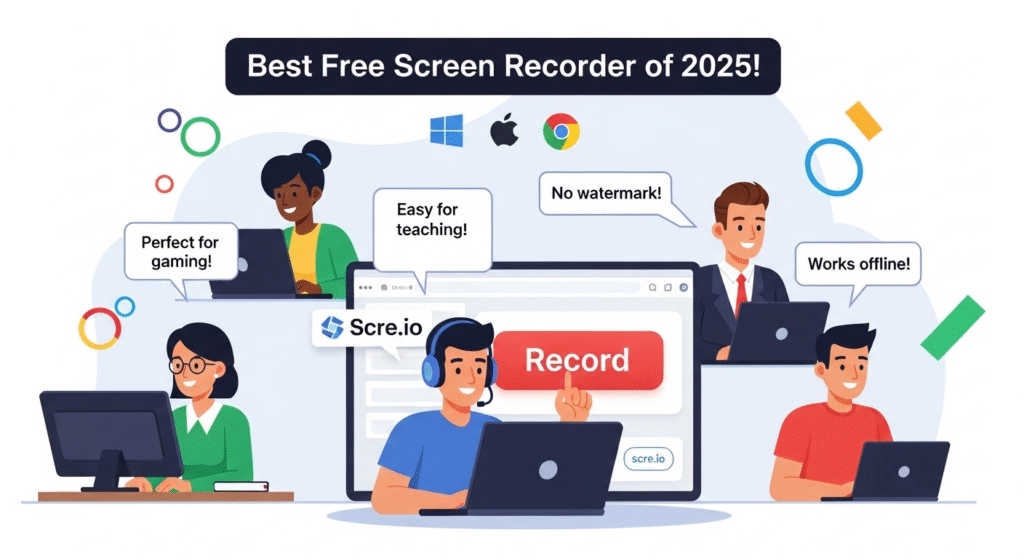
How to Start Recording with Scre.io
Ready to jump in? Whether you’re on Windows, Mac, or Chrome, Scre.io makes screen recording a breeze. Here’s your step-by-step guide to get rolling.
Step 1: Get Scre.io
- Desktop Users:
- Visit scre.io and download the app for Windows 10, Windows 11, or Mac.
- Installation is fast, and you don’t need to create an account unlike Loom or ScreenCastify.
- Chrome Users:
- Head to the Chrome Web Store and install the Scre.io Chrome extension.
- It’s quick to set up and perfect for browser-based tasks.
Step 2: Choose What to Record
- Open Scre.io and pick your mode:
- Screen Only: Capture your full desktop, a specific app, or a browser tab.
- Screen + Webcam: Add a webcam feed for tutorials or gaming videos.
- Webcam Only: Record straight from your camera for personal messages.
Step 3: Set Your Audio
- Select your audio source:
- Microphone: For voiceovers or commentary.
- System Audio: To grab game sounds or video playback.
- Both: For recordings with narration and app sounds.
- None: For silent captures.
- Do a quick test to ensure your mic is clear and system audio isn’t too loud.
Step 4: Start Capturing
- Hit the “Start” button. If you’re using the Chrome extension, you’ll pick the screen, tab, or window to record.
- A control bar pops up at the bottom, letting you pause, stop, or tweak your session.
Step 5: Save or Share
- When you’re done, click “Stop.” You’ll see “Save” (to download as MP4) or “New” (to start fresh).
- Chrome users get autosave and crash recovery for peace of mind.
- Share your MP4 via email, social media, or platforms like YouTube or Vimeo.
Step 6: Add Some Polish (Optional)
- Looking to fancy your video? Bring the MP4 into editing programs such as free editors as Shotcut, iMovie, or DaVinci Resolve to cut, add captions, or effects.
- HandBrake compresses the files and makes them easier to share.
Tips for Newbies
- Test a clip to see the quality be it audio or video.
- Store recordings in folders (e.g., tutorial recordings at work, game capture).
- Pin the Scre.io Chrome extension for quick access.
This straightforward setup makes Scre.io the best screen recorder for anyone looking to dive in without hassle.
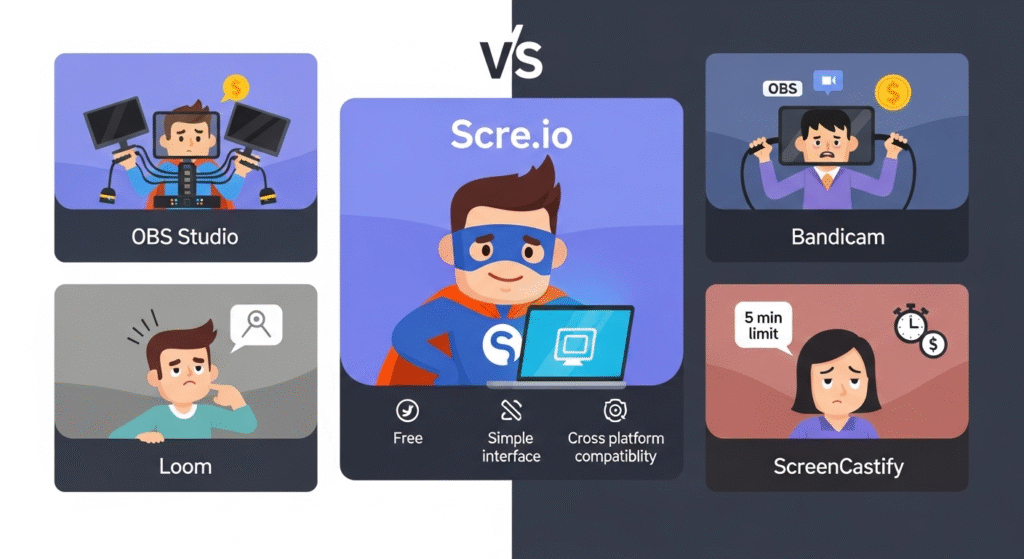
Scre.io vs. the Rest: A Head-to-Head Breakdown
Let’s see how Scre.io holds up against other screen recorders in 2026. We’ll compare it to Bandicam, OBS Studio, Loom, ScreenCastify, and iTop Screen Recorder to help you pick the right tool.
1. Scre.io vs. Bandicam
- Bandicam Lowdown:
- A favorite screen recorder for PC, especially for gamers, with 4K support and high frame rates.
- Compresses videos for smaller files.
- What’s Good:
- Great for fast-paced gameplay.
- Supports webcams and mics.
- High-quality output.
- What’s Not:
- The free version adds watermarks and limits you to 10 minutes.
- Windows-only no Mac or Chrome love.
- Full features require a paid license.
- Scre.io’s Edge:
- Free, unlimited, and watermark-free.
- Works on Windows, Mac, and Chrome.
- Simpler for non-gamers.
2. Scre.io vs. OBS Studio
- OBS Studio Lowdown:
- A free, open-source screen recorder and streaming beast for pros.
- Highly customizable with multiple sources and scenes.
- What’s Good:
- No limits or watermarks.
- Streams to Twitch, YouTube, and more.
- Runs on Windows, Mac, and Linux.
- What’s Not:
- Feels like learning a new language for beginners.
- Eats up CPU, slowing older PCs.
- Setup takes time for basic tasks.
- Scre.io’s Edge:
- Dead simple and lightweight.
- No setup headaches.
- Autosave and crash recovery.
3. Scre.io vs. Loom
- Loom Lowdown:
- A cloud-based screen recorder for quick video messages and team workflows.
- Offers Chrome extension and desktop apps.
- What’s Good:
- Easy sharing with links.
- Plays nice with Slack and Google Drive.
- User-friendly.
- What’s Not:
- Free plan caps videos at 5 minutes and 25 clips.
- I need the internet for saving/sharing.
- Limited offline use.
- Scre.io’s Edge:
- Unlimited recordings, no internet needed.
- No account signup.
- Better privacy with local storage.
4. Scre.io vs. ScreenCastify
- ScreenCastify Lowdown:
- A screen recorder Chrome extension big in education.
- Simple for recording lessons or assignments.
- What’s Good:
- Easy to use, integrates with Google Drive.
- Supports webcam and audio.
- What’s Not:
- Free plan limits you to 5-minute clips.
- Cloud-based, so internet is a must.
- Chrome-only, no desktop app.
- Scre.io’s Edge:
- Unlimited recordings, offline support.
- Available on Windows, Mac, and Chrome.
5. Scre.io vs. iTop Screen Recorder
- iTop Lowdown:
- A free screen recorder for Windows with a focus on gaming and simplicity.
- Supports 4K and no watermarks.
- What’s Good:
- No time limits or watermarks.
- Basic editing tools built-in.
- Easy interface.
- What’s Not:
- Windows-only, no Mac or Chrome.
- Fewer audio options than Scre.io.
- Some features need the internet.
- Scre.io’s Edge:
- Cross-platform support.
- More audio flexibility.
- Fully offline.
Side-by-Side Comparison
| Feature | Scre.io | Bandicam | OBS Studio | Loom | ScreenCastify | iTop Screen Recorder |
| Free Plan | Yes (Unlimited) | Yes (Watermarked) | Yes | Yes (5 min, 25 videos) | Yes (5 min) | Yes |
| No Watermark | Yes | No (Free) | Yes | Yes | Yes | Yes |
| Offline Support | Yes | Yes | Yes | No | No | Partial |
| Recording Limit | Unlimited | 10 min (Free) | Unlimited | 5 min (Free) | 5 min (Free) | Unlimited |
| Chrome Extension | Yes | No | No | Yes | Yes | No |
| Audio Options | Mic, System, Both, None | Mic, System | Mic, System, Both | Mic, System | Mic, System | Mic, System |
| Platforms | Windows, Mac, Chrome | Windows | Windows, Mac, Linux | Windows, Mac, Chrome | Chrome | Windows |
| Ease of Use | Super Easy | Moderate | Tricky | Easy | Easy | Easy |
| Crash Recovery | Yes | No | No | Partial (Cloud) | Partial (Cloud) | No |
Scre.io is the champ for most users, offering simplicity, privacy, and versatility.
Who’s Scre.io For? Real-Life Uses
Scre.io is like a trusty sidekick for all kinds of users. Here’s how it fits into different lives:
1. Content Creators
- YouTubers and Streamers: Capture gameplay or tutorials with screen recording with audio and webcam. Share clean MP4s on YouTube or Twitch.
- Bloggers: Record product reviews or web demos for social media or blogs.
- Vloggers: Use webcam only mode for personal stories or reactions.
2. Educators and Trainers
- Teachers: Record lessons for online classes or hybrid learning on Windows or Mac. Add narration for clarity.
- Corporate Trainers: Create training videos for employees, keeping sensitive info secure offline.
- Tutors: Share bite-sized explanations with students via email or Drive.
3. Professionals
- Customer Support: Record quick how-to videos for clients, like a free alternative to Loom.
- Freelancers: Show project progress or demos using the Chrome extension for web tasks.
- Marketers: Capture product demos or ads for Instagram, LinkedIn, or TikTok.
4. Gamers
- Record epic moments or full sessions on Windows 10 or Windows 11 without lag.
- Share clips on Discord or YouTube, no watermarks attached.
5. Everyday Users
- Record video messages for friends or family.
- Capture software issues for tech support.
- Save online events or calls for keepsakes.
6. Developers and QA Teams
- Document bugs or testing sessions with precise captures.
- Narrate issues for dev teams using screen recording with audio.
- Keep proprietary data safe with offline storage.
Insider Tips to Rock Scre.io
Want to level up your screen recording game? Here’s how to get the most out of Scre.io:
- Nail Your Resolution:
- Use 1080p for sharp, shareable videos.
- Drop to 720p on older devices to avoid lag.
- Get Great Audio:
- Grab a budget USB mic for clear narration.
- Balance system audio and voice to avoid drowning out either.
- Record in a quiet spot to cut background noise.
- Smart Multi-Monitor Use:
- Pick the right screen or window to keep recordings focused.
- Use the Chrome extension for web-only captures, like SaaS demos.
- Record in Chunks:
- Break long projects into shorter clips for easier editing.
- Use the “New” button to start fresh without saving scraps.
- Polish with Editing:
- Import MP4s into Shotcut, iMovie, or DaVinci Resolve for cuts, captions, or effects.
- Add subtitles for accessibility or emphasis.
- Share Like a Pro:
- Compress with HandBrake for faster uploads.
- Use Google Drive or Dropbox for secure sharing.
- Stay Organized:
- Create folders like “Tutorials” or “Game Clips” for easy access.
- Name files clearly (e.g., “Client_Demo_2026.mp4”).
- Master the Chrome Extension:
- Pin it to your browser for quick access.
- Use it for fast captures of web apps or tutorials.
Privacy and Security with Scre.io
Having your information secure in 2026 is a major thing. Scre.io offers:
- Offline Recording: Your videos are not stored at some cloud storage.
- No Sign-Up Ronstreferences: There is no need to create an account, as it is the case with Loom or ScreenCastify.
- Minimal permissions: The Chrome extension requests only the necessities.
- Safe Sharing: Your files are encrypted when you share something through the internet.
That means that Scre.io can be a reliable choice when it comes to delicate tasks, such as corporate training or client demonstration.
What’s Fresh with Scre.io in 2026?
As of July 24, 2026, Scre.io has rolled out updates to stay ahead:
- Autosave and Crash Recovery: Your recording will be safe, even in case of a crash of your device.
- Improved Audio: Pure system and microphone sound recorded.
- Chrome Extension Glow-Up: A greater variety of frame rates and options on where to place a webcam.
- Lightweight Design: The game is able to run on low-end computers and laptops.
- Accessibility Boost: A better reach of the keyboard to every user.
These tweaks make Scre.io the best free screen recorder for 2026.
When to Consider Other Tools
Scre.io is great, and here is where substitutes can be interesting:
- Fancy Edit: Camtasia or Adobe Premiere Pro to get pro level then-and-there cuts and effects (but they cost).
- Streaming: The OBS Studio to transmit on Twitch or YouTube.
- Team Sharing: Loom or ScreenCastify to work out cloud-based collaboration.
- Hardcore Gaming: Bandicam or iTop Screen Recorder, to record the high frame rates.
- Mobile: Can use iOS/Android built-in tools, because Scre.io is desktop-only.
Fixing Scre.io Hiccups
Run into trouble? Here’s how to sort it out:
- No Sound:
- Check your audio source in Scre.io.
- Update audio drivers on Windows or Mac.
- Test your mic in another app.
- Laggy Video:
- Close other apps to free up resources.
- Lower resolution or frame rate.
- Check Scre.io’s system requirements.
- Chrome Extension Issues:
- Update it in the Chrome Web Store.
- Clear browser cache.
- Reinstall if needed.
- Can’t Save:
- Ensure you have disk space.
- Use crash recovery to grab unsaved files.
- Try a different save folder.
Conclusion
Scre.io isn’t just a screen recorder it’s a tool that makes creating, teaching, and sharing a breeze. With unlimited recordings, no watermarks, offline support, and compatibility across Windows 10, Windows 11, Mac, and Chrome, it’s the best free screen recorder for 2026. Whether you’re a gamer, teacher, professional, or just messing around, Scre.io delivers pro results without the complexity or cost of Bandicam, OBS Studio, Loom, ScreenCastify, or iTop Screen Recorder.
Ready to give it a spin? Download Scre.io at https://scre.io/ or grab the Chrome extension and start capturing your world today.
FAQs
- Is Scre.io actually free?
Yup, 100% free with no watermarks, time limits, or sneaky fees. - Can I record audio with Scre.io?
Totally, pick from mic, system audio, both, or none for screen recording with audio. - Does it work offline?
You bet Scre.io saves locally, no internet needed. - How does it compare to paid tools?
It rivals Camtasia for recording but skips advanced editing. Perfect for most needs. - Good for gaming?
Yes, great for gameplay on Windows 10 or Windows 11, though Bandicam might edge out for super high-frame-rate needs. - Is there a mobile version?
Nope, Scre.io is for Windows, Mac, and Chrome. Use phone-native tools for mobile.